Dashboard
The Apiary dashboard is a terminal app for watching your hive work in real time — which tasks are running, how your agents are performing, and what the dispatcher is doing right now.
Before you start
The dashboard shows data produced by a running dispatcher. In a typical setup you have two terminals:
apiary run is headless — it does not draw anything itself, it just works in
the background and writes everything to the data store. apiary dashboard is
the window you open to watch it.
If you open the dashboard before the dispatcher has ever run, it will tell you
no data is available yet. Start apiary run and the dashboard will fill in on
its next refresh.
The dashboard only ever reads — you can open and close it as often as you like without affecting running tasks.
Where the data lives. Apiary is project-scoped: its state sits in a
.apiary/folder next to your config file — the database at.apiary/apiary.db, logs under.apiary/logs/, and IPC socket at.apiary/apiary.sock.Config file lookup order.
apiarylooks for the config file in two places (in order): 1.apiary.yamlin the current directory 2..apiary/apiary.yamlin the current directoryThis lets you keep everything tidy inside
.apiary/:.apiary/ apiary.yaml ← your config (optional here) apiary.db ← SQLite database (auto-created) apiary.sock ← IPC socket (auto-created) logs/ ← log files (auto-created) apiary.yaml ← your config (default location)Run
apiary dashboardfrom the same directory asapiary run(or point both at the same config with--config) so they share the same project data.
Getting around
The dashboard has four tabs along the top. Use the keyboard to move:
| Key | Action |
|---|---|
← / → |
Switch between tabs |
Tab / Shift+Tab |
Next / previous tab |
↑ / ↓ |
Move the selection or scroll within a tab |
Home / End |
Jump to top / bottom |
PgUp / PgDn |
Page up / down |
Ctrl+U / Ctrl+D / Space |
Alternative page up / down |
r |
Refresh now |
W (Shift+W) |
Start a workflow manually |
q / Ctrl+C |
Quit |
The active tab refreshes on its own every couple of seconds. The footer shows how long ago the data was last loaded, so you always know how fresh it is. Contextual help in the footer shows which keys are available in the current view.
The tabs
Overview
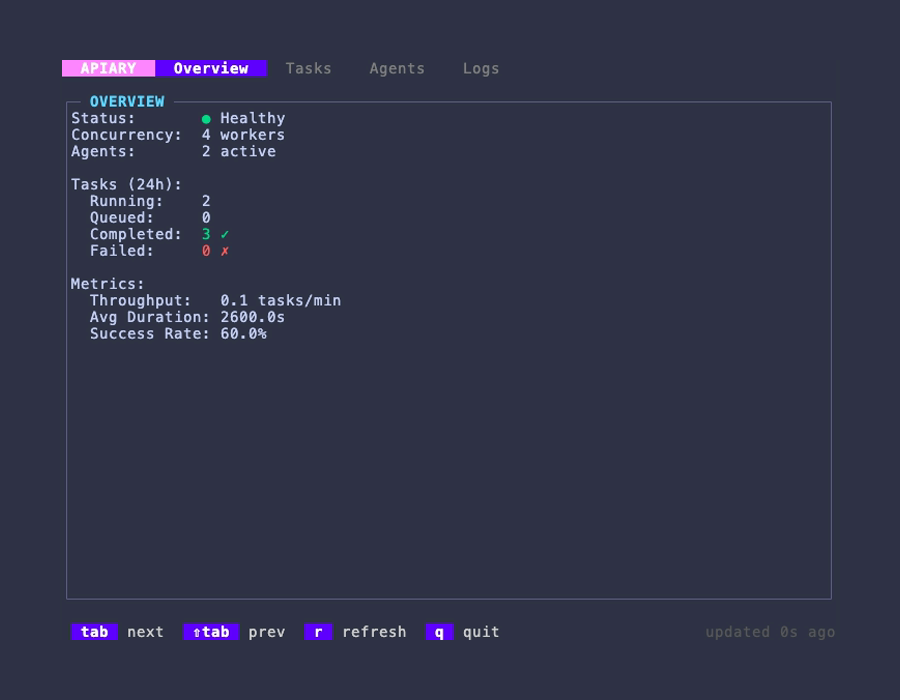
Your at-a-glance health check. Use this tab to answer "is everything moving?"
- Status — dispatcher health indicator (Healthy / Degraded / Unknown) with a live glyph.
- Uptime — how long the dispatcher has been running.
- Concurrency — worker pool size (configured in
apiary.yaml). - Active Agents — agents that have processed work in the last hour.
- Running — how many tasks are being worked on this instant.
- Queued — tasks that failed and are waiting to be retried automatically.
- Completed / Failed — how much work finished today, and how much didn't.
- Success Rate — the share of today's work that succeeded. A sudden drop is your cue to check the Logs tab.
- Avg Duration and Throughput — how long tasks take and how fast they're clearing, so you can spot slowdowns.
Counts like Completed, Failed, Success Rate and Avg Duration cover today (since midnight) and reset each day. Running and Queued are live right-now numbers.
Tasks
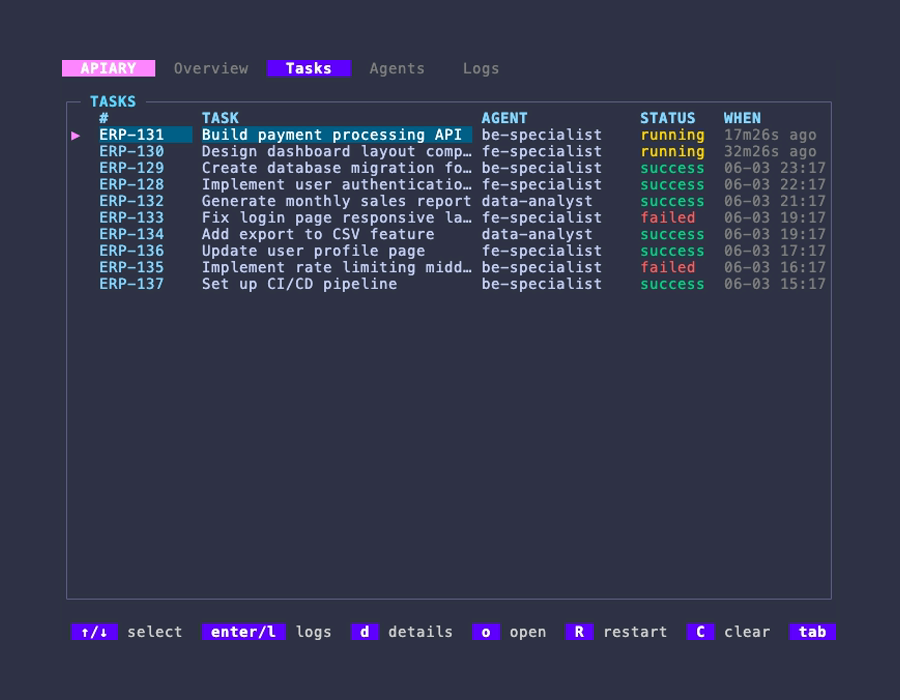
A list of recent tasks — both running and already finished — newest first. Each
row shows the task title, which step it is on, its status, and when it ran.
Use ↑ / ↓ to move the ▶ marker.
The list opens with the newest 100 tasks. When older ones exist, a hint appears
under the last row; press ↓, PgDn or End while on that row to load the
next 100 below it. Loaded pages stay put across the periodic refresh.
The / filter and the tickets-only (T) / approvals (A) toggles run in the
query, not on the loaded rows: they search every task ever recorded, and the
matches page the same way. The filter matches the title, the task id, the
state, and the source reference (#412, ERP-42) of any binding.
   #          TASK                            STEP           STATUS   WHEN
▶  #412       Fix approval gate re-entry      review 3/5     running  4m ago
   #401       Port pgsink to new columns      check-ci 4/6   blocked  1h ago
   #396       Decompose the spec              ⑂ 3 steps      running  8m ago
The STEP column answers "where has it got to": the step now executing and
its position in the workflow. A task running more than one workflow instance at
once — parallel, for_each, or spawned children — shows ⑂ 3 steps rather
than picking one of them to display.
There used to be an AGENT column here. An agent is a property of a step, not of a task, so for a task whose steps used three different agents it showed one arbitrary agent of the three. The agent is still shown per step in Details and in the workflow monitor, where it is accurate.
From the list you can drill into the selected task:
| Key | Opens |
|---|---|
d |
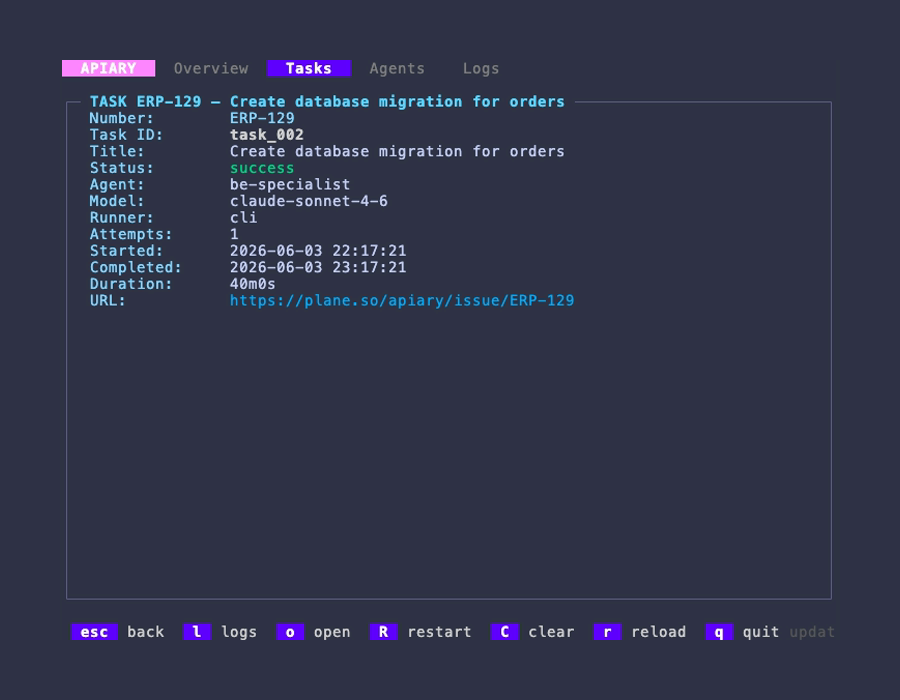
Details — agent, model, runner, attempts, start/finish times, total duration, and the error message if it failed |
Enter or l |
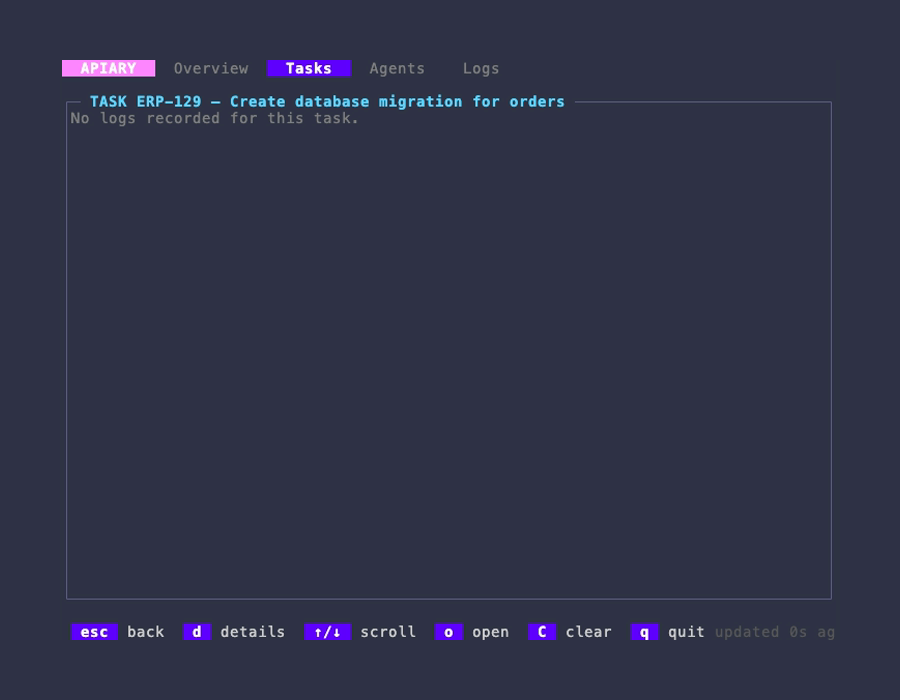
Logs — the per-task log lines for that run |
o |
Open the task in your browser (its source URL) |
R (Shift+R) |
Force restart — cancel and re-dispatch the task (with confirmation) |
W (Shift+W) |
Start a workflow on the task, ignoring triggers and guards |
C |
Clear logs — delete all logs for the task (with confirmation) |
b |
Board — the same tasks grouped into columns by state (see below) |
Esc / Backspace / h / ← |
Back to the list |
The # column shows each task's human reference (e.g. ERP-42) so you can
match a row to the work item in Plane. Press o on any task — in the list, in
Details, or drilled into from an agent — to open it directly in the browser.
In the Logs view, ↑ / ↓ scroll through the lines, Home / End jump
to the top / bottom, and PgUp / PgDn (or Ctrl+U / Ctrl+D / Space)
scroll a page at a time. From either sub-view you can jump straight to the
other (d ↔ l) or press r to reload it.
Running tasks show how long they've been going; finished tasks show when they completed. A task that was retried shows its attempt count in the Details view.
Workflow monitor
Pressing Enter on a task whose work is driven by a workflow opens the live
monitor: the step list on the left, and the selected step's detail — or its logs
— on the right.
| Key | Action |
|---|---|
↑ / ↓ |
Move between steps |
Enter / l |
Open the selected step's logs in the right panel |
- / + |
Resize the split — narrow or widen the step list, 5% at a time |
[ / ] |
Switch between workflow instances, when a task fanned out to several |
t |
Open the step's transcript |
r |
Refresh the monitor |
X / R |
Stop the workflow / restart the whole task (both confirm first) |
Esc / Backspace / h / ← |
Back (closes the log panel first, then the monitor) |
The split defaults to 40% and is clamped between 20% and 80% so neither panel
becomes unreadable. Widening the step list past the default reveals the DUR
column, which the default width clips. - / + work while the log panel is
open, which is usually when you want the extra room; resizing never disturbs
the step selection or scroll position.
Force restart and clear logs
Pressing R (Shift+R) on a selected task shows a centered confirmation
modal with a rounded border. Press y / Y to confirm or any other key to
cancel. This sends a restart request to the daemon via Unix socket: the task's
running dispatch and queued jobs are cancelled, its non-terminal instances are
interrupted, its control labels are stripped, and the item is re-routed and
dispatched immediately — it does not wait for the next poll.
The result appears as a one-line banner above the footer, and the list refreshes straight away so the new run is visible:
✓ Restarted CDT-123 (10042) — dispatched 1 workflow(s): implement✗ Restarted CDT-123 (10042) — but no workflow matches it right now, so nothing was dispatched
The banner names the item the way you know it — the Jira key, the GitHub issue
number — with the raw cell id in parentheses when the two differ.
- ✗ Restart failed: … — the daemon's own message, e.g. an id that is an internal
task id rather than a cell id.
Restart deliberately overrides the once and failure-cap guards (the banner names
what it overrode); it never overrides the in-flight guard, so a workflow that is
genuinely running is not started a second time.
Pressing C on a selected task works the same way — confirm with y / Y
to delete the task's logs and execution records, or any other key to cancel.
Answering an approval
A workflow parked at an approval step shows its question in the task detail and in the workflow monitor. Answer it there:
| Key | Action |
|---|---|
y |
approve — or open the form, when the step declares fields |
n |
reject |
a |
open the form |
The form renders the step's declared fields: ↑ / ↓ move between them, a
choice is selected with ← / → or its number, a boolean toggles with space,
Enter approves, Ctrl+R rejects, Esc cancels. Submitted values reach the
workflow as ${{ memory.<field> }}.
The result is reported in the banner — including a refusal, such as a gate someone else has already answered. Rejecting never asks for the fields.
The same requests are answerable from the terminal with apiary approvals; see
Human-in-the-loop approvals.
Starting a workflow manually
W (Shift+W) opens a picker listing every configured workflow. ↑ / ↓
select, Enter starts, Esc cancels. It works from any tab.
Where R re-runs whatever matches an item, W runs the workflow you name —
matched or not. It skips the trigger's match block, exclusive suppression, the
live-instance guard, once, and the failure cap. Starting a workflow that is
already running on the task is allowed: the banner says so, and you get a second
concurrent instance.
The header of the picker names the target before you commit to it:
item <id>— the task focused when you pressedW. The run binds it and writes back to the source like any other dispatch.standalone — no source item— no task was focused, or you pressedsto detach from it. The workflow runs on a fresh internal task; comments, state locks and sub-issues are no-ops for that run.
The result appears as the usual banner, e.g. ✓ Started triage on CDT-123 (10042)
(bypassed triggers and guards). Use apiary dispatch
for the same thing from a shell, where you can also pass --input.
Watching the live conversation (debug mode)
By default the per-task Logs show the milestones: the dispatch decision, the agent's final output, and whether it succeeded. To watch the full, real-time conversation with the agent — every message, tool call, and result, plus the exact prompt that was sent and the routing decision that picked the agent — start the dispatcher in debug mode:
With --debug, each task's Logs view fills in live as the agent works (the
dashboard refreshes every couple of seconds). You'll see, in order:
- the routing decision — which route matched, which were skipped and why, and the agent that was selected;
- the prompt — the exact text sent to the agent (task title, description, labels, and the agent's soul file);
- the conversation —
[assistant]messages,[tool→ …]calls with their inputs,[tool← result]outputs, and a final[result:…]line with turns, duration, and cost.
These are DEBUG-level lines (shown in grey). Without --debug they are not
recorded, keeping normal runs lightweight.
The rich [assistant] / [tool→ …] breakdown comes from Claude's structured
event stream — the claude provider preset already requests it
(--output-format stream-json --verbose), so a plain runner is enough:
Apiary parses those events into the readable lines above. A CLI without structured output still streams — you just see its raw output instead.
The board
Press b for a board view of the same tasks, one column per state:
  QUEUED (1)              RUNNING (2)              BLOCKED (2)              DONE (12)
  #418                  │ #412                   │ #401                   │ #390
  Add plugin registry   │ Fix approval gate re-… │ Port pgsink to new co… │ Docs: plugins
  —                     │ review 3/5             │ check-ci 4/6           │ —
  2m ago                │ 4m ago                 │ ci 1h ago              │ 20m ago

  FAILED (1) — needs attention
    #407     Improve advisor evidence pack        build 2/7      3h ago
The columns are the task states themselves, so a card sits in BLOCKED because
its state says blocked — nothing is inferred. A blocked card also shows what
it is waiting on (approval, ci, dependency).
FAILED is a lane, not a column. The columns are stages work passes
through, and terminal failure is not one — it is an exception waiting for a
person. The lane stays visible when it is empty, showing FAILED (0), because
"nothing needs attention" is worth seeing.
The board is a working surface, not a wallboard. Every key does what it does elsewhere, acting on the selected card:
| Key | Action |
|---|---|
← → |
Move between columns (at the edges, switches tab) |
↑ ↓ |
Move within a column |
Enter / l |
Open the task |
a / y / n |
Answer the approval the card is blocked on |
R (Shift+R) |
Force restart the task |
b / Esc |
Back to the list |
Answering approvals in place is the reason the view earns its keystroke: open
the board, see BLOCKED (4), clear four gates without drilling into four tasks.
Cards cannot be dragged between columns. A card moves when the hive moves it —
state is a consequence of what actually ran, and a board that let you drag a
task into DONE would be asserting something that never happened.
DONE is capped so finished work cannot squeeze out the columns that need
attention; the header always shows the true count, with +N for what it did not
fit. On a narrow terminal columns are dropped from the right (DONE first, then
QUEUED) and their counts move into the header. Below about 40 columns the
board declines to render and the list is shown instead.
To open on the board every time, set it per hive:
or per invocation with apiary dashboard --view=board.
Agents
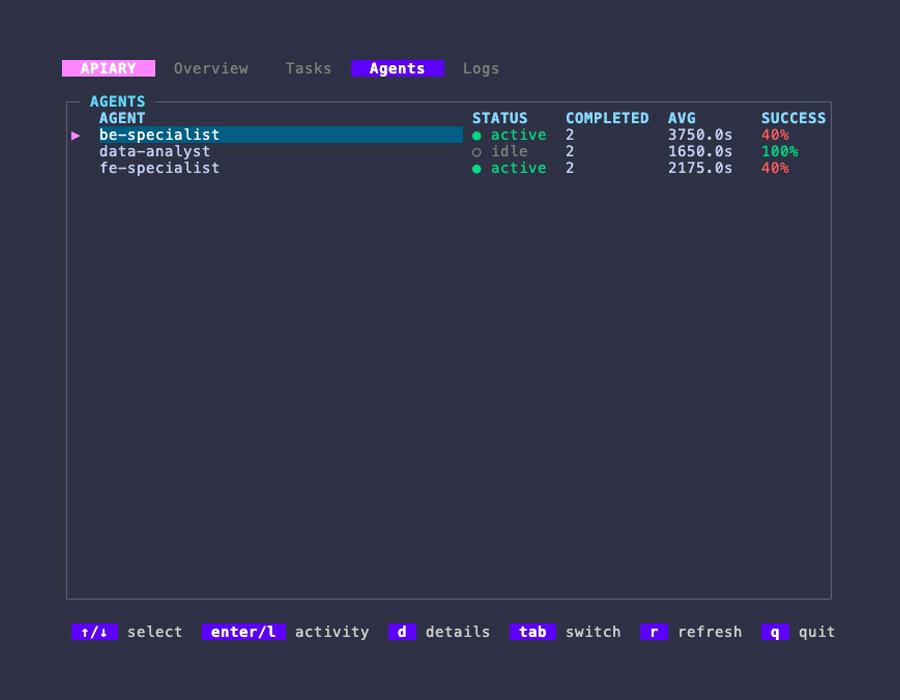
How each of your agents is performing over time. For every agent you'll see its status (active / idle), completed task count, average run time, and overall success rate (color-coded).
Use this tab to compare agents — to spot one that's failing more often than the others, or one that's much slower — so you can adjust which work you route to it.
An agent shows up here once it has actually run at least one task.
The Agents tab supports three levels of drill-down:
| Key | Action |
|---|---|
d |
Detail — full per-agent stats: status, running count, current task, completed / succeeded / failed counts, queued count, success rate, average duration, last task timestamp |
Enter / l |
Activity list — all tasks handled by this agent (from activity: press Enter / l again to drill into that task's logs) |
o |
Open the task's source URL in your browser (from activity or task logs) |
Esc / Backspace / h / ← |
Back one level (agent list → detail → activity → task logs) |
Home / End |
Jump to top / bottom in activity list or task logs |
PgUp / PgDn |
Page up / down in activity list or task logs |
Logs
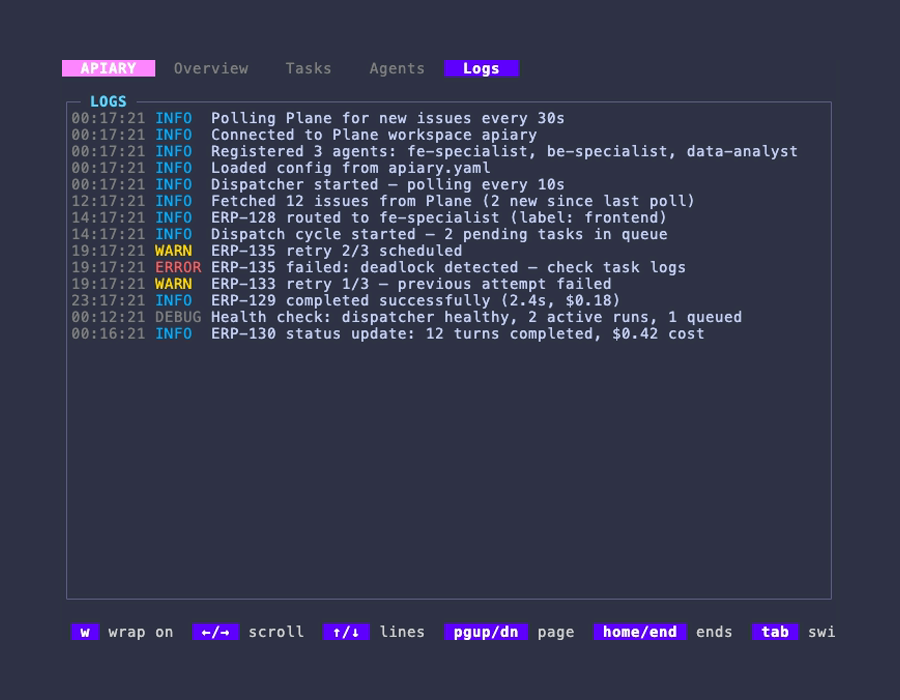
A live feed of what the dispatcher, router, and runners are doing, newest at the bottom. Lines are color-coded so problems stand out:
- Red — errors
- Yellow — warnings
- Blue — informational
- Grey — debug / verbose
Use ↑ / ↓ to scroll back through recent activity. Home / End jump to
the start / end, and PgUp / PgDn (or Ctrl+U / Ctrl+D / Space) scroll
a page at a time.
| Key | Action |
|---|---|
w |
Toggle word wrap — when on (default), long messages wrap. When off, ← / → scroll horizontally by 8 columns |
← / → |
Horizontal scroll — only when wrap is off |
r |
Refresh now |
The footer shows your scroll position (e.g. line 42/150) so you always know
where you are. This is the first place to look when the Overview tab shows
failures.
Troubleshooting
The dashboard says there's no data / a tab looks empty.
The dispatcher hasn't produced that kind of data yet. Make sure apiary run is
going in another terminal, then give it a task to work on. The Overview and
Agents tabs populate first as soon as work starts; the Tasks and Logs tabs fill
in as the dispatcher records running tasks and log activity.
Numbers look stale.
Press r to force an immediate refresh. The footer shows the last update time.
The dashboard won't open.
It needs the dispatcher's data store, which is created the first time you run
apiary run. Run the dispatcher once, then reopen the dashboard.
I want to quit.
Press q (or Ctrl+C).